
Add a BACnet device to Home Assistant
Adding a device takes three steps in the setup wizard: network settings, picking a device, and choosing which BACnet objects to import. A BACnet object is one data point on a controller, such as a temperature input, a fan output or a schedule.
Add the integration
Go to Settings → Devices & Services → Add Integration and search for BACnet IP.
Configure your network
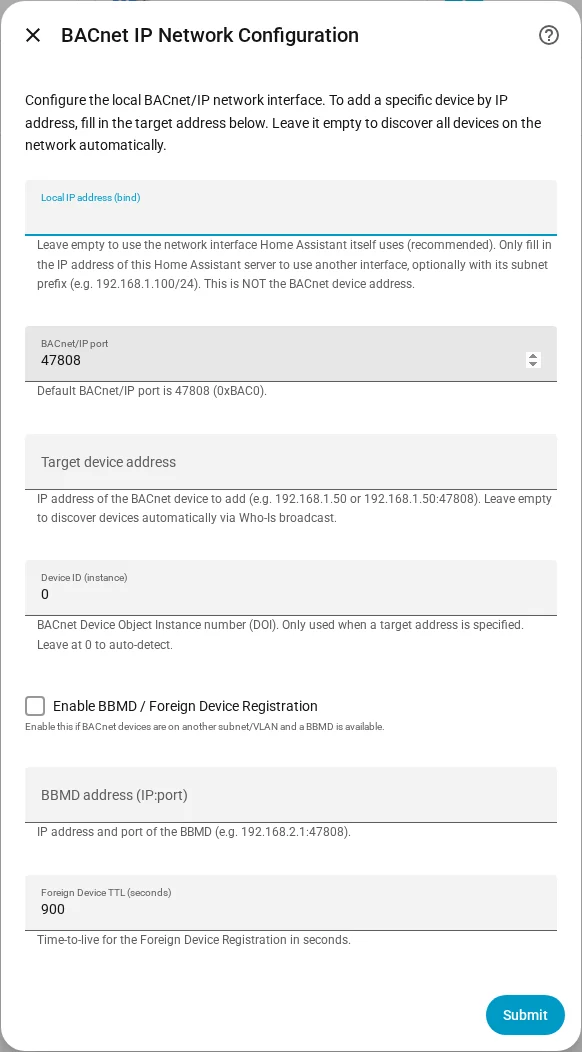
| Setting | What it does | Default |
|---|---|---|
| Local IP address (bind) | Which network interface of Home Assistant to use. Leave empty to use the interface Home Assistant itself uses (recommended). This is not the address of the BACnet device. | Auto |
| BACnet/IP port | The BACnet/IP UDP port. | 47808 |
| Target device address | IP address of one specific device, such as 192.168.1.50 or 192.168.1.50:47808. Leave empty to discover all devices with a Who-Is broadcast. | Empty |
| Device ID (instance) | The BACnet device instance number. Only used with a target address; leave at 0 to detect it. | 0 |
| Enable BBMD / Foreign Device Registration | Turn on if the devices are on another subnet or VLAN and a BBMD is available. | Off |
| BBMD address (IP:port) | Address of the BBMD, such as 192.168.2.1:47808. | Empty |
| Foreign Device TTL (seconds) | How long the Foreign Device Registration lasts. | 900 |
Step by step for another subnet: Device in another subnet.
A BBMD forwards BACnet broadcasts between subnets. Without one, a broadcast Who-Is never leaves the local network, so devices on another VLAN are not found. A Who-Is is the BACnet broadcast that asks "who is out there"; devices answer with an I-Am.
Note: Only one program can use UDP port 47808 on a machine at a time. If another BACnet program runs on the same host, stop it or choose a different port.
Select your device
The integration looks for BACnet devices and lists them in a dropdown. Pick the one you want to add. If no device is found, enter its IP address in the Target device address field on the previous page. See Troubleshooting.
Choose objects and name your device
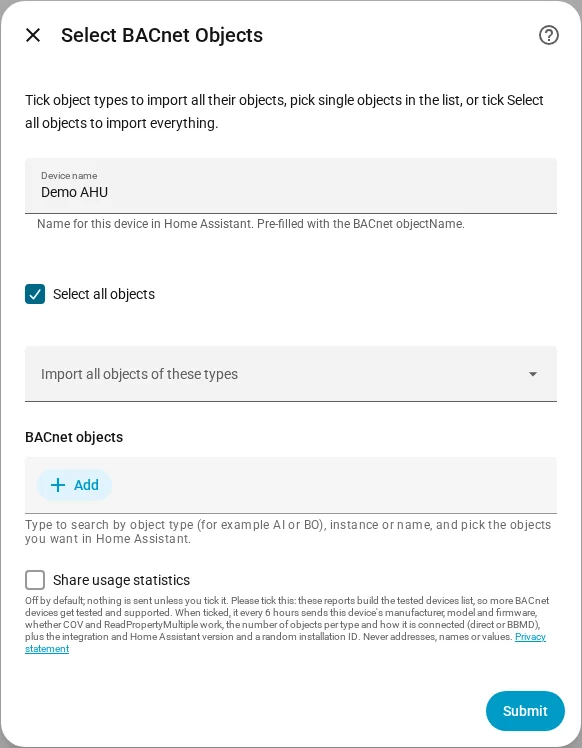
- Enter a device name. It is pre-filled with the BACnet name of the device; you can change it.
- Pick what to import. Nothing is selected yet. You can combine:
- Import all objects of these types: tick a type such as Analog Input (40) to import every object of that type.
- BACnet objects: a searchable list. Type an abbreviation (
AI,BO 3,MSV), an instance number or a name to find single objects. - Select all objects: everything on the device.
- Click Submit. Your entities are created and data starts flowing.
Only import what you need. Fewer objects means less network traffic and a tidier device page. You can add or remove objects later with Rescan device.
After setup
The device page shows the entities grouped as controls, sensors, configuration and diagnostics. How each object type becomes an entity is explained in Entities and attributes.