
Guide - show a BACnet water meter in the Energy dashboard
Goal: a BACnet object that counts water volume shows up in the Home Assistant Energy dashboard.
Before you start
- The device is already added (see Getting started).
- The meter is an analog object (Analog Input or Analog Value) in a volume unit: mL, L, m³, ft³ or gal. If the BACnet unit is another one, this guide does not apply.
- You know the object by its name or number, for example
AI 12.
Steps
- Each BACnet device is its own entry, titled with the device name, under Settings → Devices & Services → BACnet IP. Click Configure on the entry of your device.
- Choose Customize objects: type, COV, state class, properties.
- In Objects to customize, search for your meter (by
AI 12, instance or name) and pick it. Click Submit. - The next page shows the settings of that object. In this list every field starts with the object, for example Analog Value (4) - SP - type; the other fields of that object (COV, extra properties, other properties) look the same. Set:
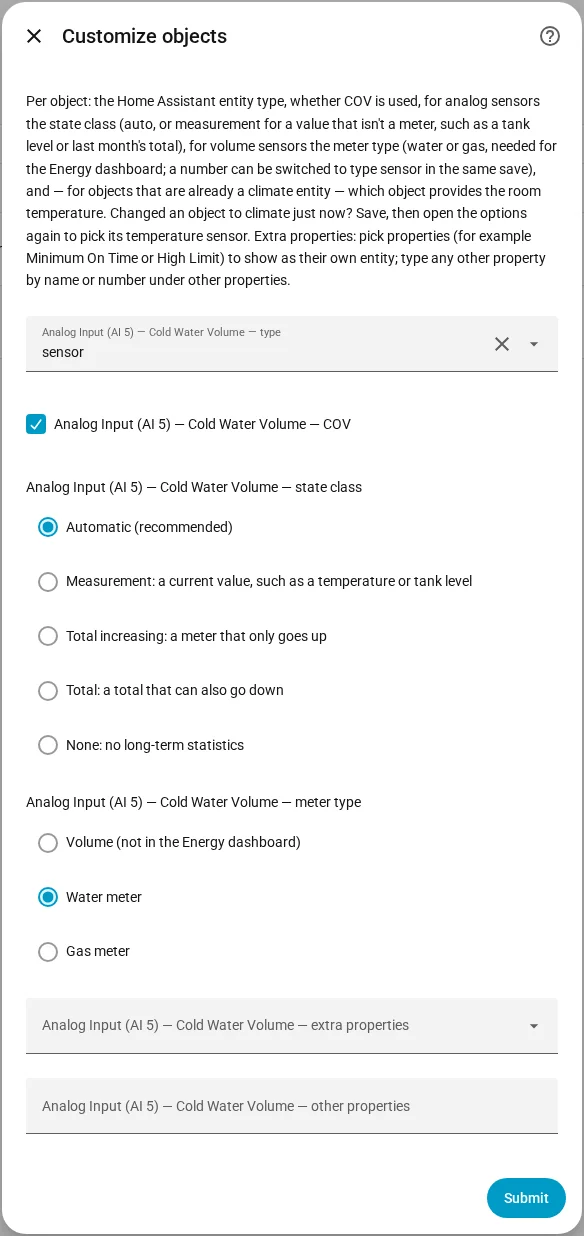
- state class to Automatic. For a volume unit this gives Total increasing, which is what a meter needs.
- meter type to Water meter. (A gas meter in gal loses its device class, so gallons only work as a water meter.)
- type to
sensor. An Analog Input is a sensor already. A writable Analog Value is anumberby default, and the Energy dashboard only lists sensors, so change it in this same save.
- Click Submit. The integration reloads by itself.
You should now see the entity as a sensor with a volume unit on the device page. The meter type makes it a water sensor.
The Energy dashboard now lists the sensor.
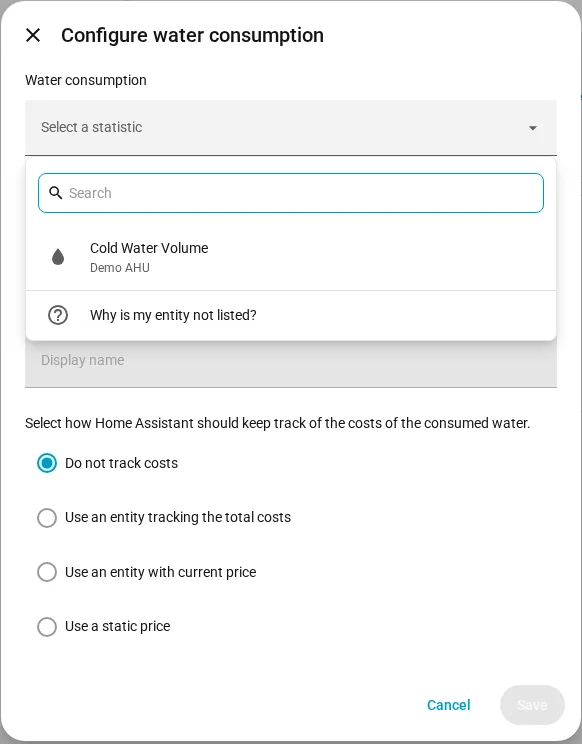
Flow rates (L/h, m³/h, ...) need no setting at all. They work as water flow in the Energy dashboard as they are.
If it doesn't work
- The sensor is not offered in the Energy dashboard: check that meter type is Water meter and that type is
sensor, notnumber. BACnet units cannot tell water from gas or from a tank level, so without a meter type the sensor stays a plain volume that the dashboard does not list. - The value is a tank level or a "last month" total and not a counter: set state class to Measurement instead.
- You changed the unit or state class and Home Assistant complains about statistics: open Developer tools → Statistics and click Fix issue once per sensor.
More detail: Customize objects and Entities and attributes.